
 Menu
Menu
Weird Pad
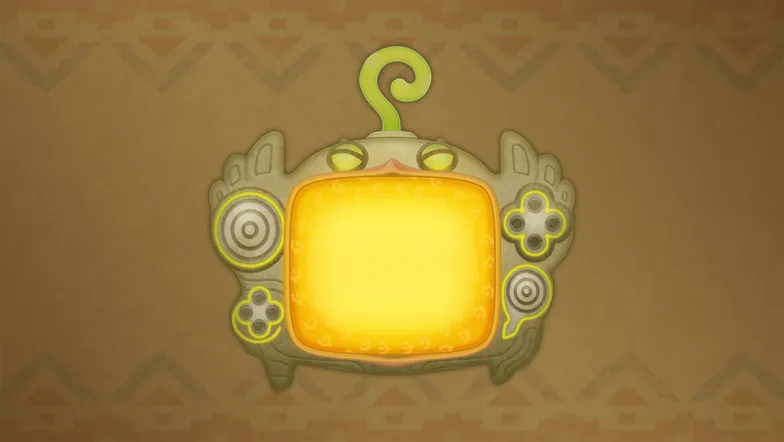
Press  to turn on the Weird Pad. It has all sorts of peculiar functions, so have fun experimenting!
The Guide Menu on your Weird Pad lets you re-read past explanations. Useful when you've forgotten certain controls!
About Saving
You can save your progress by opening up your Weird Pad and pressing  or by selecting "Save." Make sure to save before taking a break!
Photo Mode
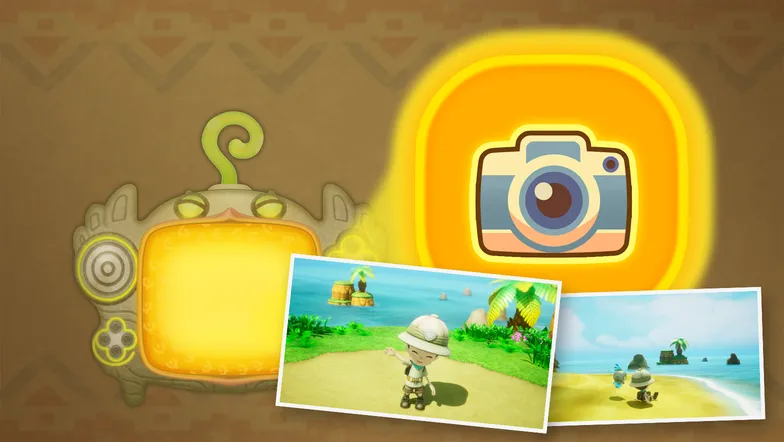
In Photo Mode, you can set up the camera and your character's pose as you like and take a screenshot. Once you decide on a cool pose, take a picture with !
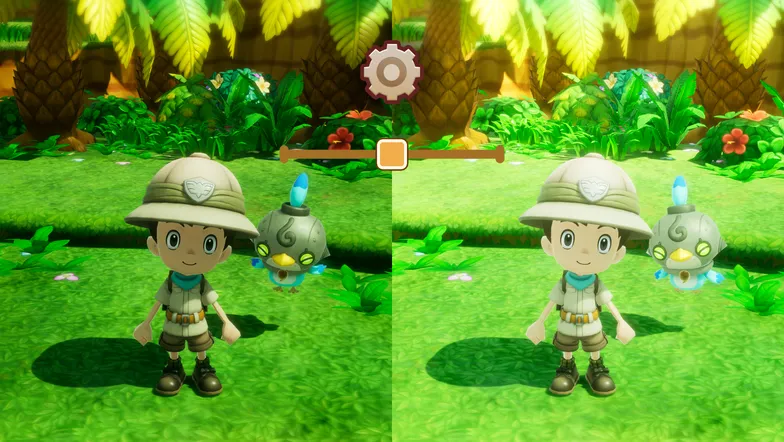
Open the Settings Menu with  to adjust the brightness, toggle the display of chat and Stickers, as well as edit other screen settings.
Item Menu
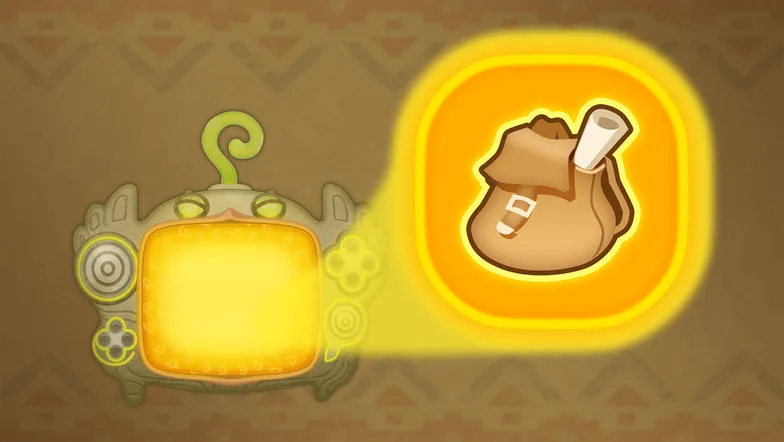
The Item Menu shows the items currently in your possession.
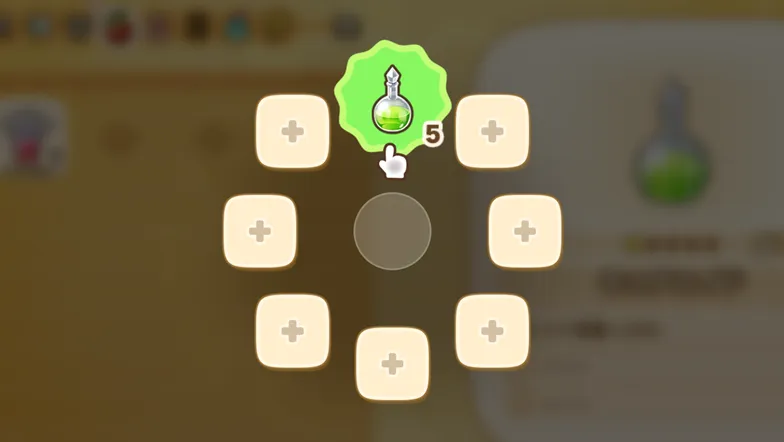
Press  to select a consumable. You can either use it on the spot or register it to your Bag.
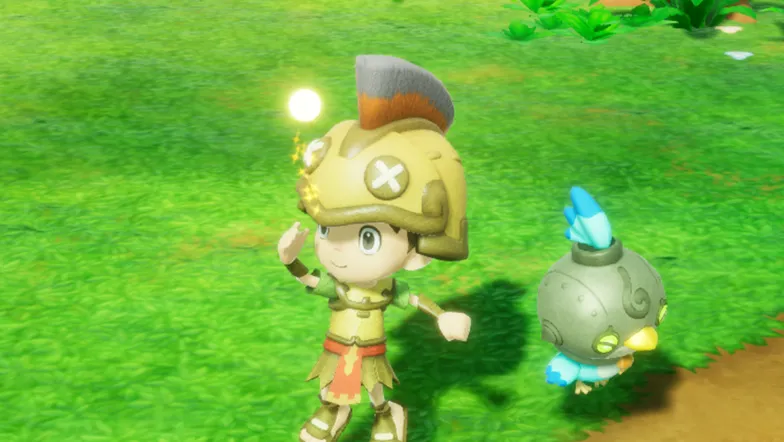
Press  to quickly access registered items stored in your bag while you're adventuring.
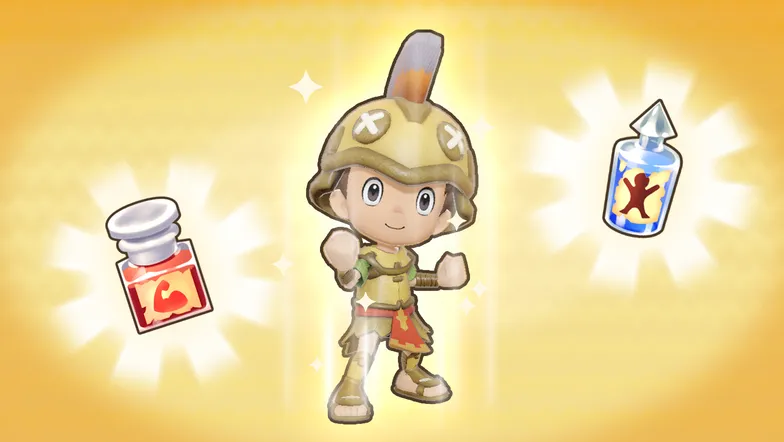
Some items temporarily boost your attack or defense. Be aware that using items with the same effect will overwrite the previous boost; they don't stack!
Equipment Menu
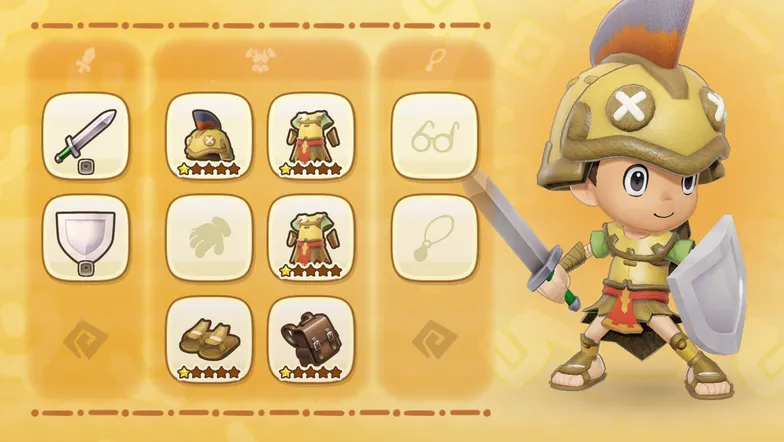
Equip your weapons, armor and accessories in this menu. Don't forget to equip new items that you've found or crafted!
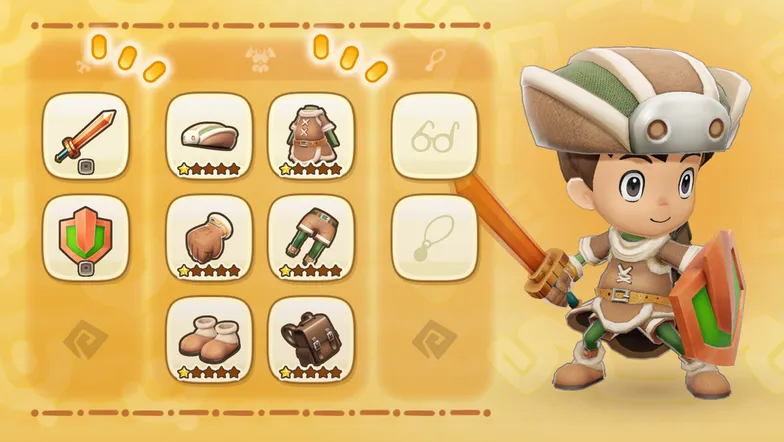
Auto Equip selects and equips gear with the highest stats available, at the simple press of a button. Use this when unsure what is best to wear!
Outfit Menu
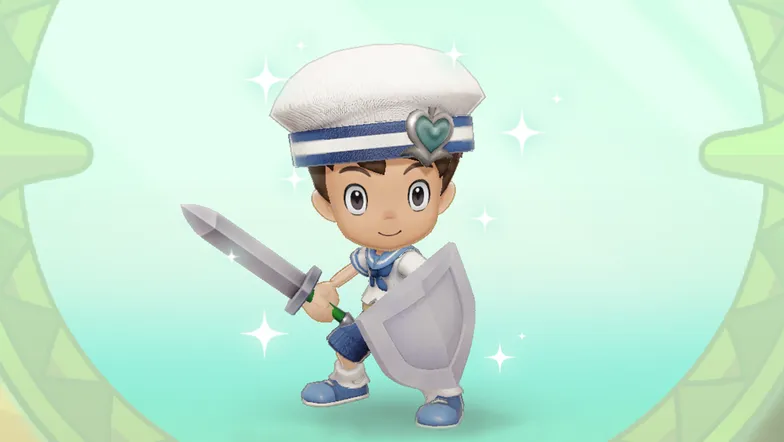
You can create unique Outfits to change your appearance. However, your equipment stats will not change in any way.
Skill Board
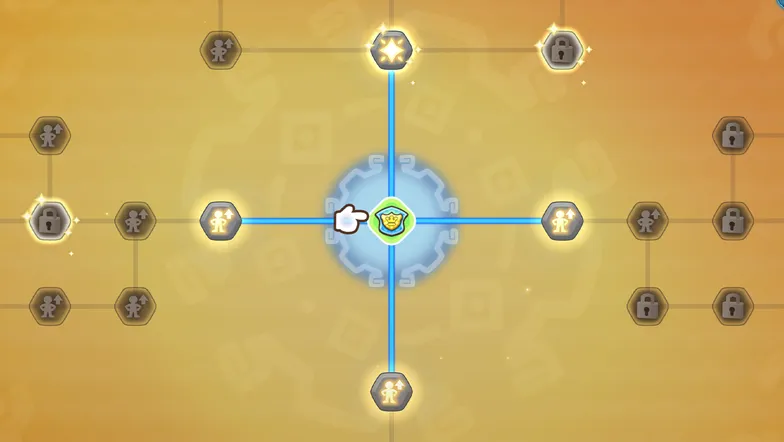
When you level up, you'll earn skill points which can be used to learn skills for each Life.
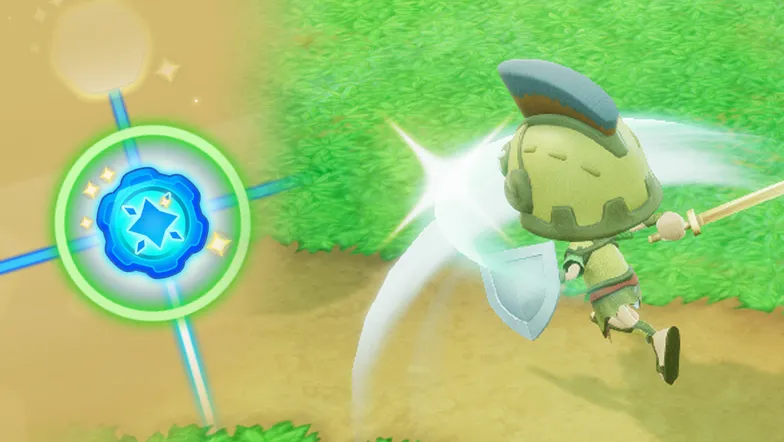
When your Life Rank increases, new skills will unlock on the skill board. Higher ranks will unlock even more powerful skills!
Character Menu
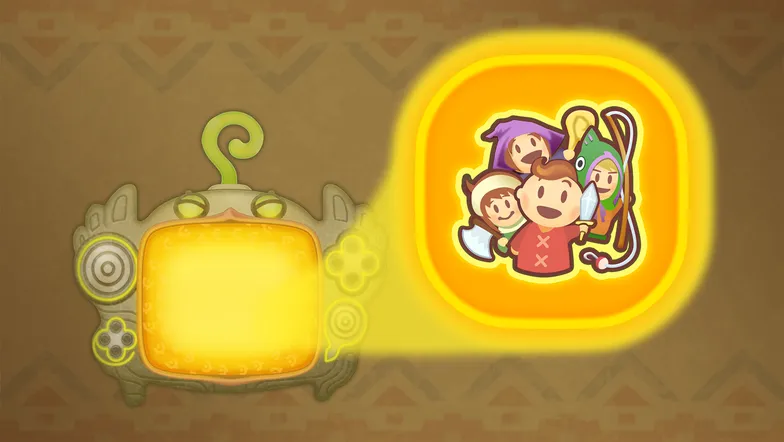
You can review your own as well as your Buddies' information on this screen, such as learned skills.
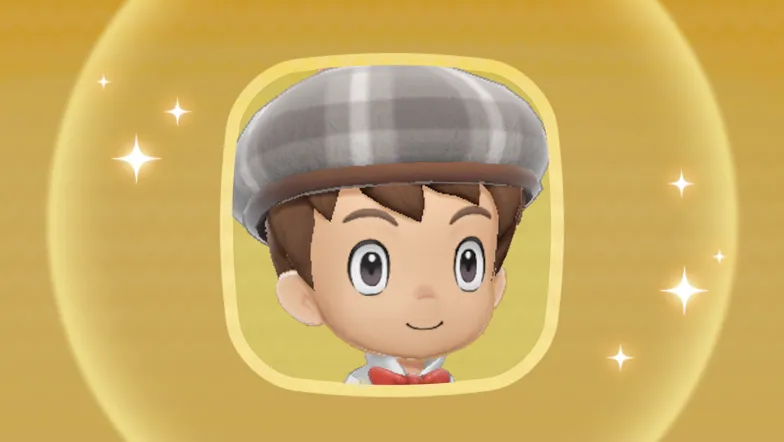
Press  to take a selfie capturing your current mood and make it your new icon. Share your fabulous style with the world!
Party Formation Menu
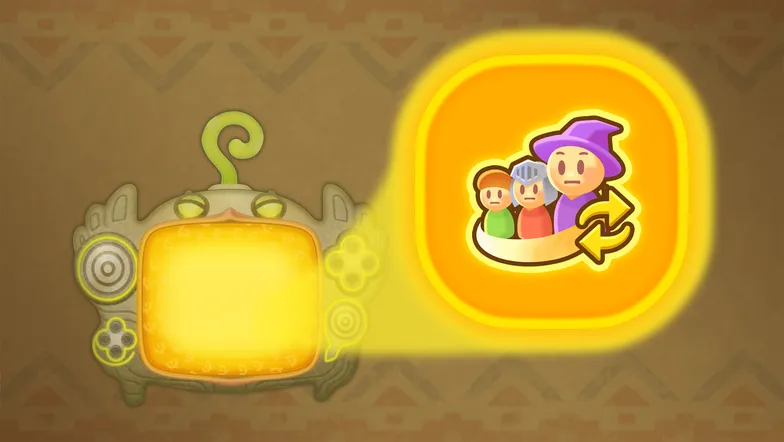
From "Party Formation" you can choose which of your Buddies to bring along the next time you set out on an adventure.
Quest Menu
Shows your current quests and upcoming objectives. You can also choose a quest and set it as your next objective.
Activities Menu
The Activities Menu displays daily missions and allows you to check the contents of each Bulletin Board.
Life Menu
Switch Lives via the License Menu. Your current level and rank are also displayed here. Each Life requires a License, obtained from the Guild Office.
Map
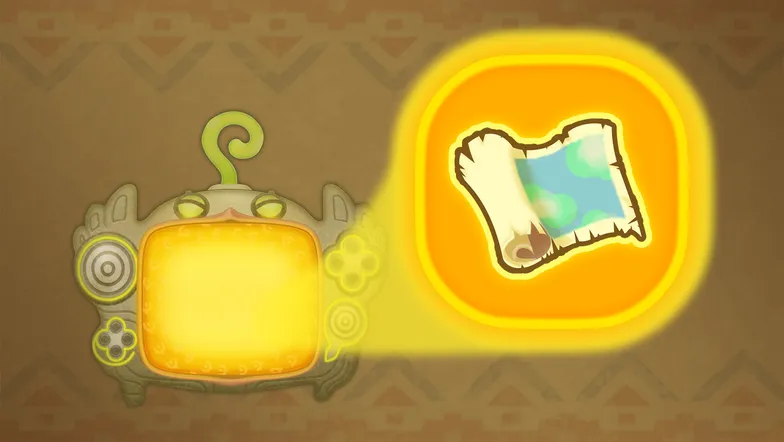
Shows the local map and next destination. You can also check the world map from here. Press to bring it up during your adventure.
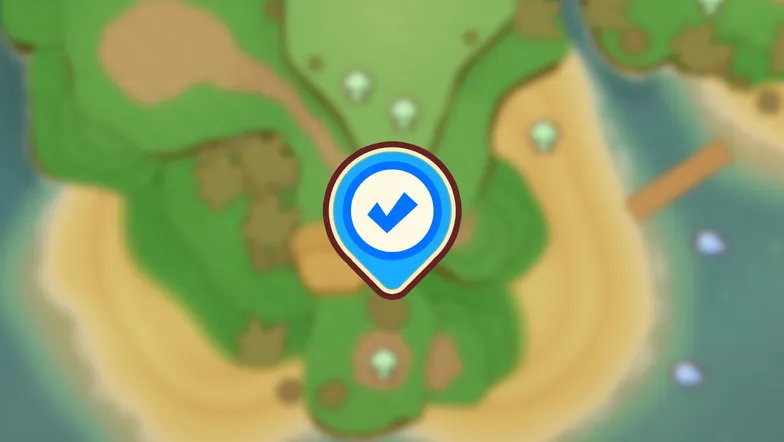
Set a destination by placing a pin on the map. Move the cursor with  and place a pin with . Remove a pin by pressing while hovering over it.
Map Screen Icons (Part 1)
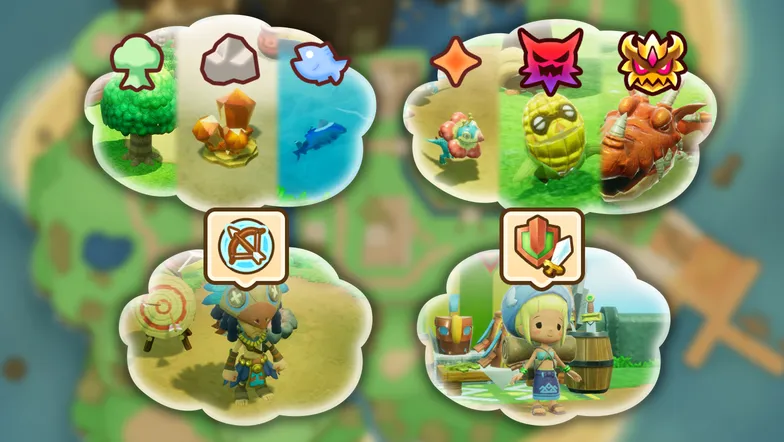
Gathering spots such as trees, ore deposits and fishes, as well as monster locations are indicated on the map in the form of icons. There are also icons for Life Masters and shops.
Map Screen Icons (Part 2)
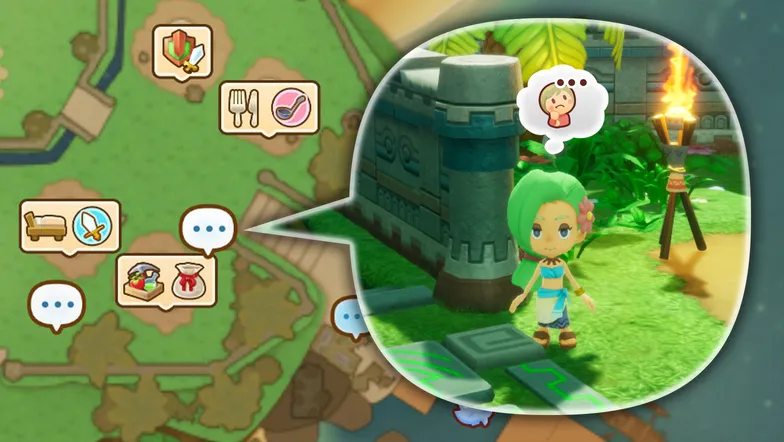
Speech bubbles indicate someone with a request. Move the cursor over the icon to see more details.
Useful Map Functions (Part 1)
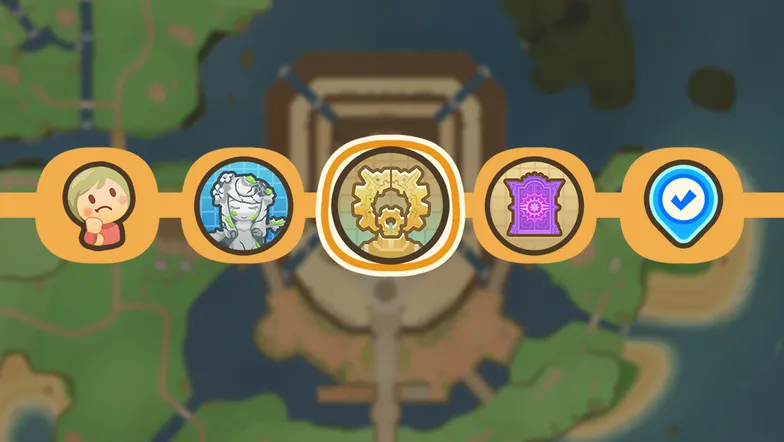
Press to open a list, displaying destinations you can fly to with Skelegon and personal requests you can undertake. Use this if you're unsure where to go!
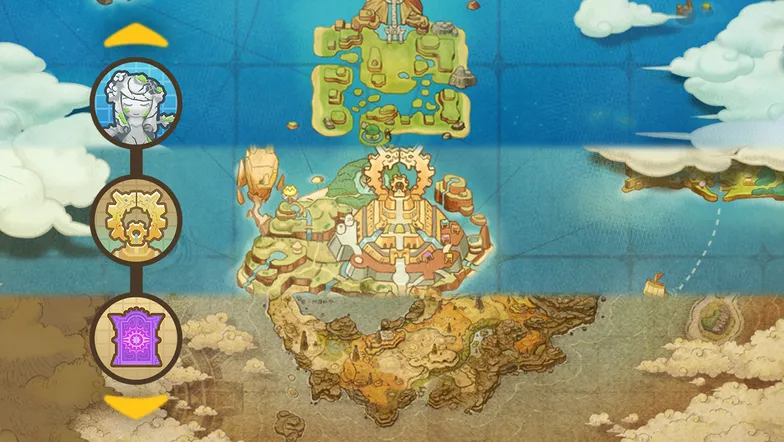
Pressing  and
and  toggles between maps of the Present, Past and Ginormosia. Move
  up or down to toggle between overview and detailed maps. Try the other functions at the bottom of the screen!
Encyclopedia Screen
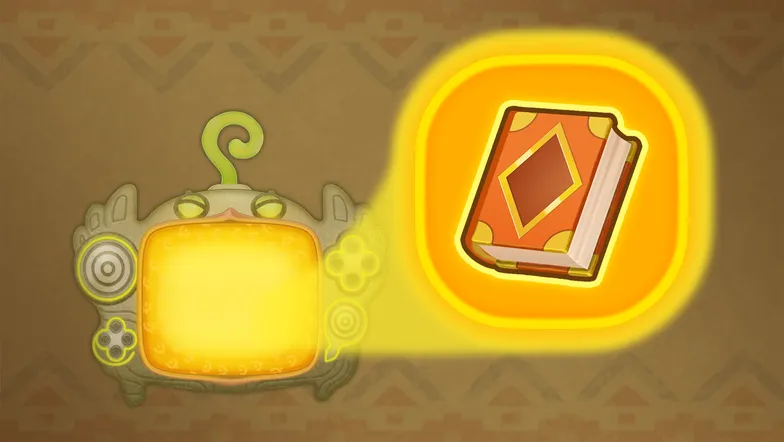
The Encyclopedia Screen displays information on monsters you have defeated and gatherable spots you have harvested. A profile for each of your Buddies is also available!
Gift Menu
Enter a gift code here to collect gifts!
Options Menu
Adjust the game's settings here. Find the perfect setup for you to enjoy your adventure.
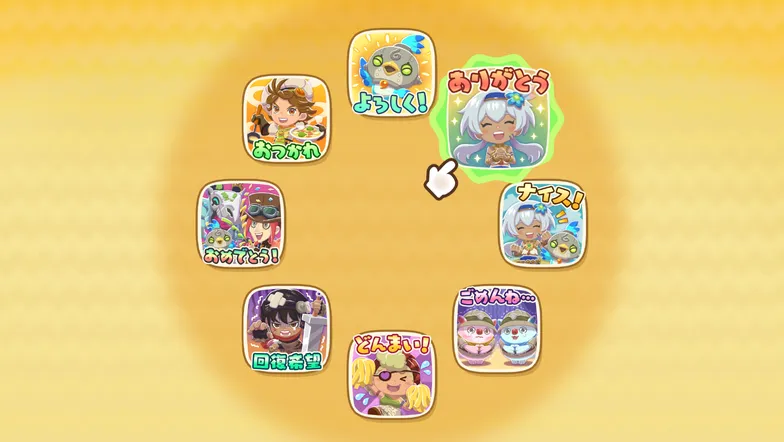
You can also edit Stickers, Emotes and Quick Texts from the Options Menu. Adjust everything the way you want before heading out on your adventure!


